
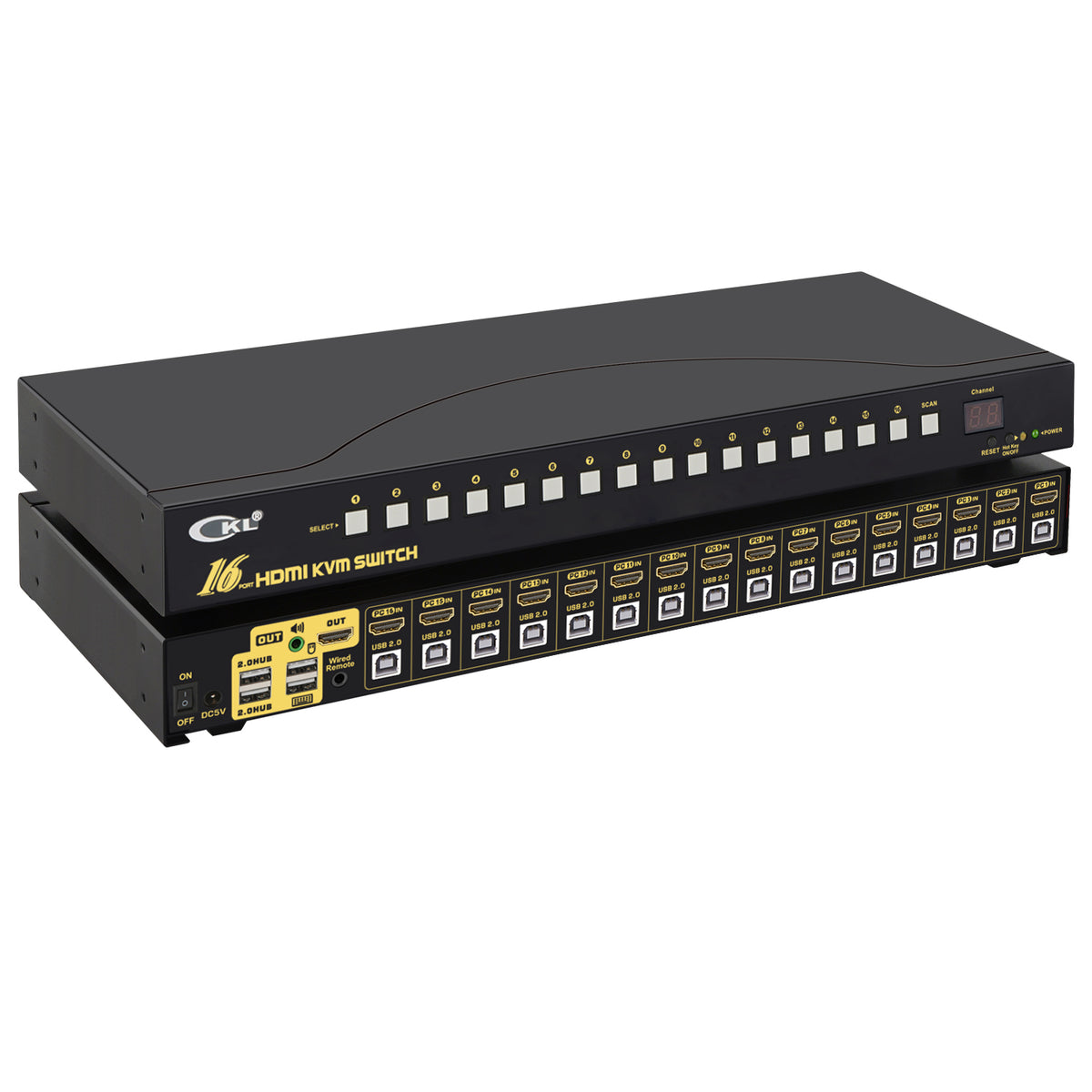
CKL USB HDMI KVM Switch 16 Port 1U Rackmount 4K 60Hz with Cables 9116H-2B
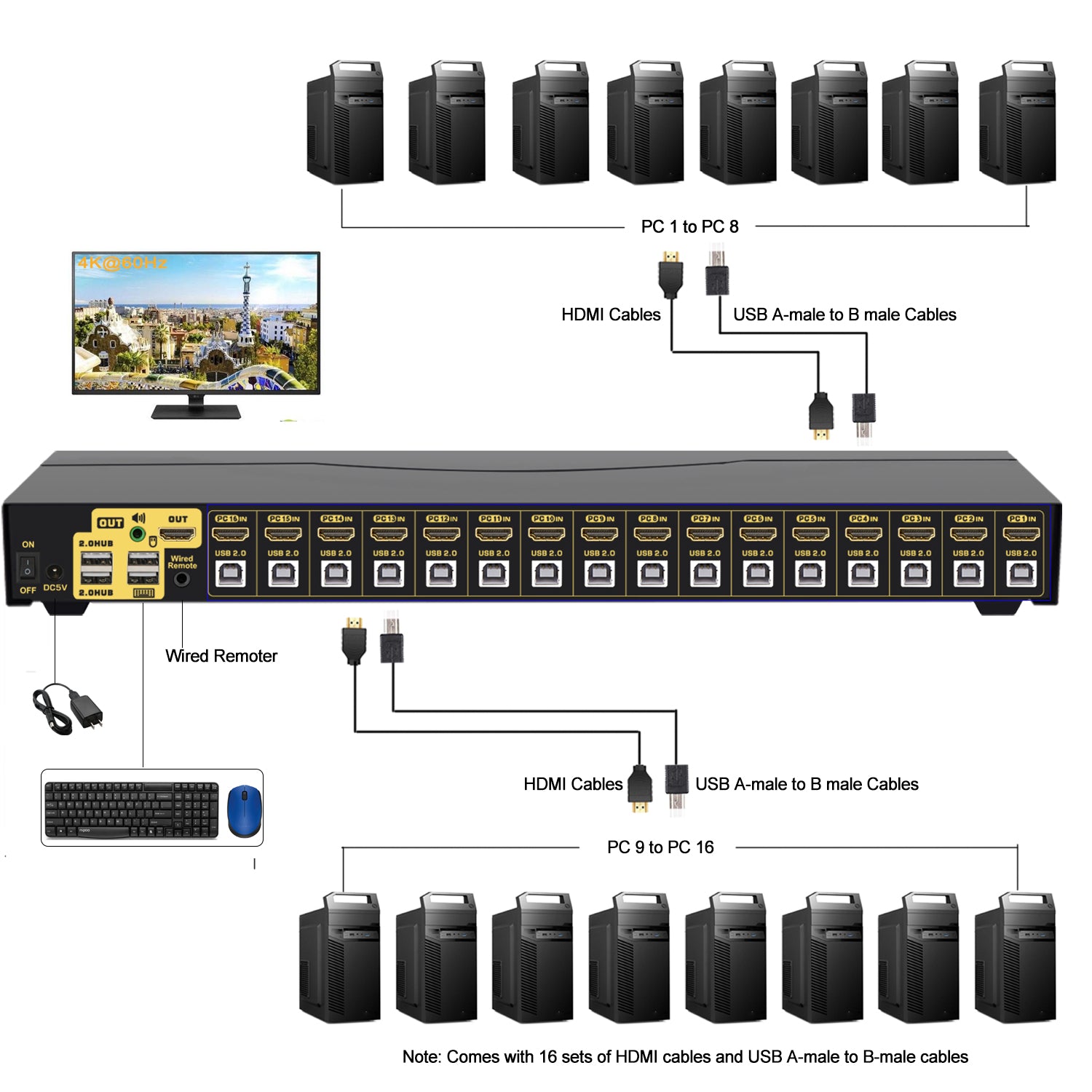
Control capability: One single USB console controls 16 computers, DVRs and NVRs with HDMI interfaces.
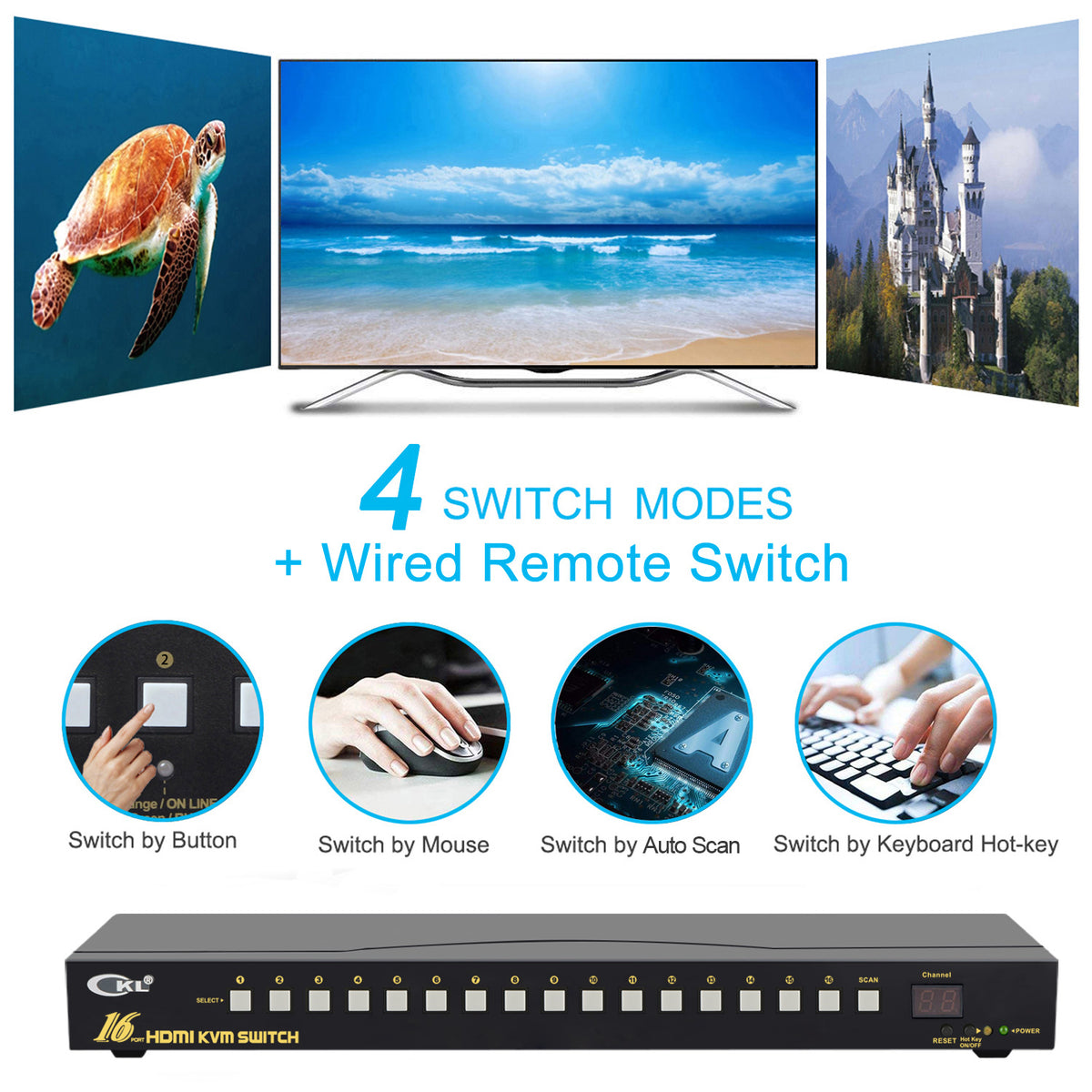
Four switching modes: Front‑panel push buttons, keyboard hot‑keys, mouse‑triggered switching, and optional wired remote push‑button controller.
Audio & video specifications: Compliant with HDMI 2.0 and HDCP; supports EDID emulation; compatible with Dolby True HD and DTS HD Master Audio; supports 4K@60Hz, and backward‑compatible with resolutions including 480i, 480p, 720p, 1080i and 1080P.
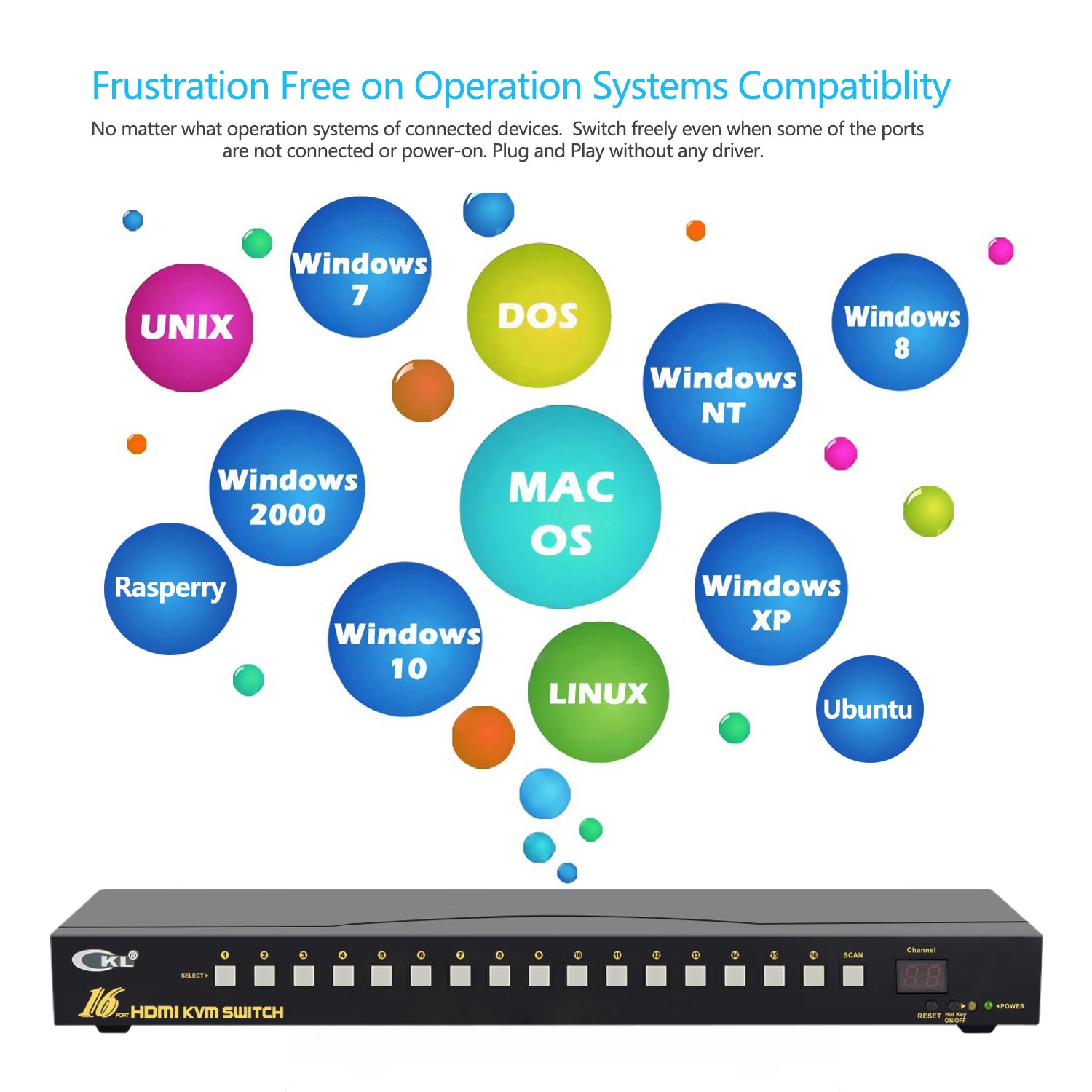
System & hardware: Multi‑platform support for Windows, Linux and Mac; hot‑plug‑and‑play supported; auto‑scan monitoring function available; built‑in 2‑port USB 2.0 hub.
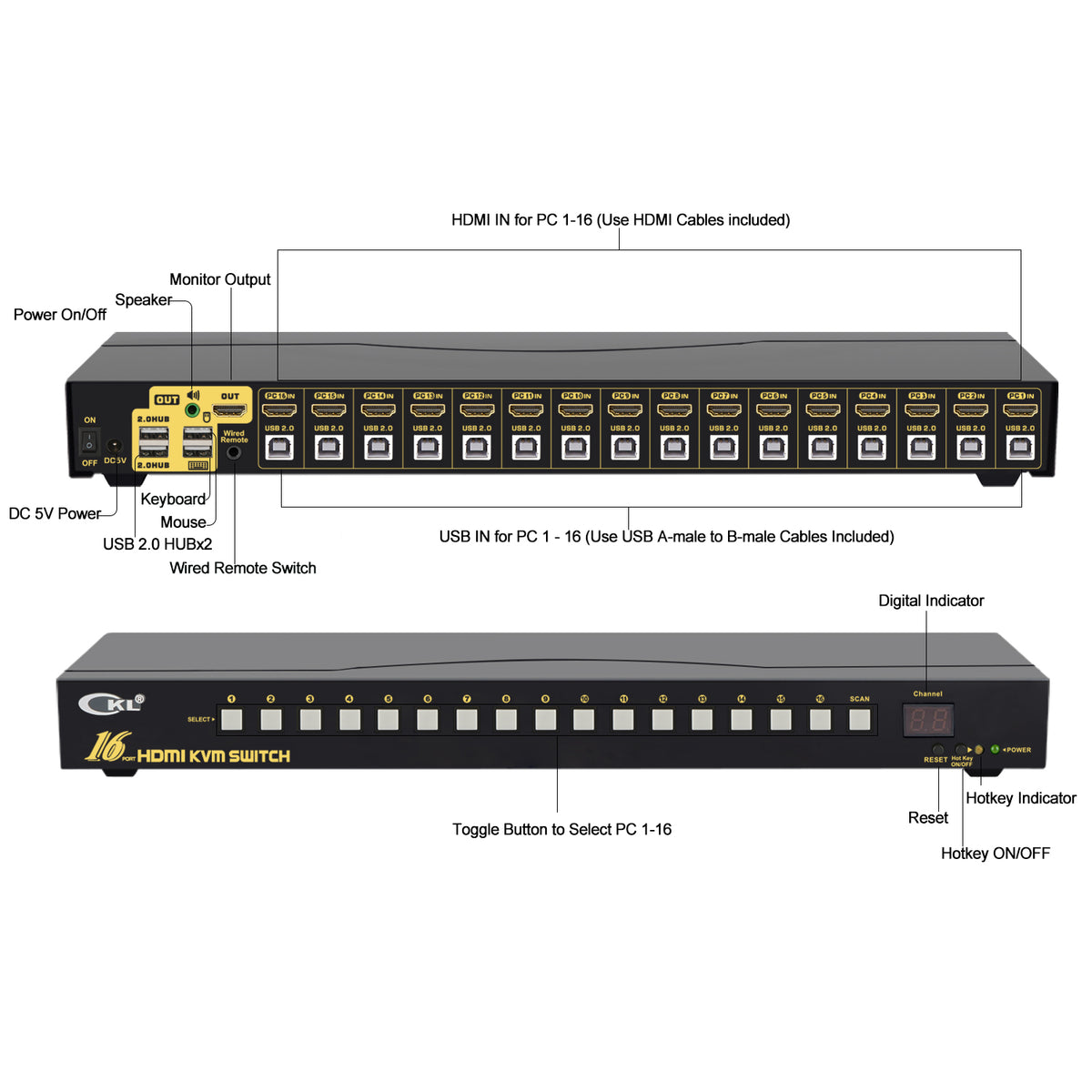
Controlled device ports: 16 ports
Console ports: USB‑A for keyboard, HDMI for monitor, USB‑A for mouse, 2‑port USB 2.0 hub, 3.5 mm stereo audio jack
Input ports: 16 sets of USB‑B (keyboard & mouse) + HDMI (video)
Power supply: DC power adapter, DC 5 V, power consumption 5 W / 7.5 W
LED indicators: 2 LED indicators
Auto‑scan interval: 8‑999 seconds; factory default: 8 seconds
Operating environment: Operating temperature: 0‑50 ℃; Storage temperature: ‑20‑60 ℃; Humidity: 0‑80 % RH, non‑condensing
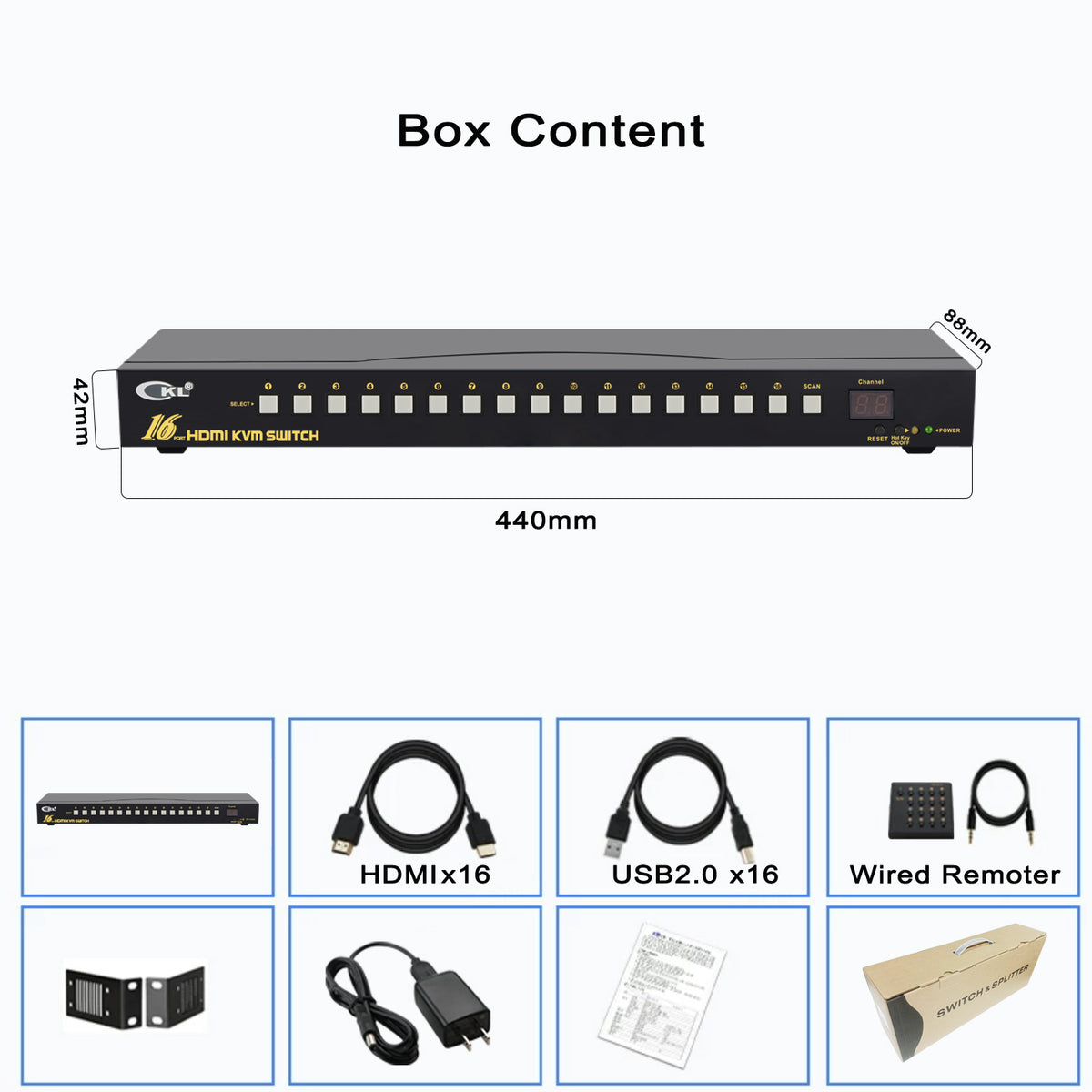
Housing & dimensions: Metal housing; 440 × 88 × 42 mm
Four Switching Modes
- Front‑panel push‑button switching: Press physical buttons on the front panel to switch to target ports.
- Wired remote switching (optional accessory): Switch ports via the wired remote controller after it is plugged into the KVM unit.
- Keyboard hot‑key switching: Default trigger hot‑key is double‑right‑Ctrl. Operation: Double‑click the right 【Ctrl】 → port number → 【Enter】 to switch to the selected port.
-
Mouse scroll‑wheel switching
- Double‑click the mouse middle scroll wheel, then press the right mouse button: switch to the next port.
- Double‑click the mouse middle scroll wheel, then press the left mouse button: switch to the previous port.
Hot‑key Function Enable / Disable Settings
- Disable mouse scroll‑wheel switching: Double‑click right【Ctrl】+【M】+【Enter】. A beep confirms the function is disabled. The mouse port becomes a standard USB 2.0 hub.
-
Disable keyboard hot‑keys
- Method 1: Double‑click right【Ctrl】+【K】+【Enter】. A beep confirms the function is disabled. The keyboard port becomes a standard USB 3.0 hub, and the small indicator dot on the panel goes out.
- Method 2: Short‑press the hot‑key on/off button on the front panel.
- Restore hot‑key functions: Press the “Hot key on/off” button on the front panel. The green indicator lights up and hot‑key functions are restored.
Recommendations: Disable mouse‑wheel or keyboard hot‑key functions when using gaming, multimedia or mechanical keyboards / mice. You may still use the wired remote controller for convenient port switching.
Important Notes
- “N” represents target port number (1‑16) or scan interval value (8‑999).
- When auto‑scan is active, pressing any front‑panel button will terminate auto‑scan automatically.
- If connected computers enter sleep mode, you must press the host power button to wake them up. It is recommended to disable sleep mode on connected computers.
What’s in the box:
- 1*16 port KVM switch
- 1*Power adapter
- 1*User manual in English
- 2*Rackmount hooks
- 16*HDMI Cables
- 16*USB A-male to B-male Cables
- 1* Wired remoter with cable
Q: Keyboard or mouse does not work A:
- Verify that USB cables and connectors on host sides are properly connected, no signal anomalies, and power supply is intact.
- After video output switches normally, wait several seconds for the computer to finish driver recognition for keyboard and mouse connected to the KVM switch.
- Trigger the reset function to restart the KVM switch.
- Power off the KVM unit and power it back on to trigger hardware re‑enumeration.
옵션 선택